Tips for Collecting Victory Royales on Fortnite Mobile
By Nicholas Barth ·
Feeling like you are not playing as well on Fortnite mobile than you are on console or PC? Don't worry, as we have a few tips that are sure to increase you level of performance.
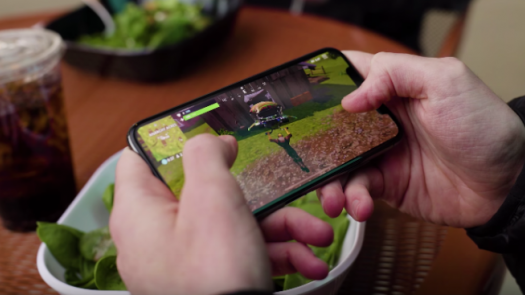
After taking over the worlds of the Xbox One, Playstation 4 and PC with Fortnite Battle Royale, Epic Games decided that it was time to stake their claim in another section of the video game industry by introducing Fortnite Mobile. Now available for everyone to download and play, the mobile version of the hit battle royale game has quickly shot up to the top of the charts and now allows fans to play anywhere they would like.
Unfortunately, for many players having the control scheme condensed on a single touch screen instead of a controller or a mouse and keyboard has proved to be troublesome as they try to collect victory royales on the go. If you are looking for a couple of tips that will help you improve you mobile battle royale experience, you have come to the right place as we have compiled some important ones for any player to utilize in order to rise to the top.
Memorize the Controls

One of the tallest tasks that players must face when beginning to play this version of Fortnite is learning and mastering the controls that are all found on the touch screen.
Your movement controls are located on the left side of the screen. Dragging up will move your character forward, while dragging down will move your character backwards. You can also utilize the auto run feature, a feature not present in other versions of the game, to have your character run without any input from you. This is especially useful for mobile players, as having less fingers on the screen at once will give you a much better view of your surroundings and prevent any accidental button pressing.
Your Inventory is found on the bottom of the screen right in the center with your reload button sitting on top. To the right of your inventory is where you will find the build button, which will transfer the user interface into the building version. Finally, on the right side of the screen you will find the controls for jumping, crouching and using your weapons. In the same way the movement system is focused on you dragging your finger across the screen, the weapon system consists of you aiming by dragging your finger along the screen and firing your equipped by tapping the screen.
The crosshair button is a very important key to having success as it will allow you to aim in an accurate over the shoulder third person perspective. You will want to utilize this crosshair button anytime you are in a fight, as aiming and hitting your target is hard enough on mobile.

Once you have pressed the building mode button that we mentioned earlier, your user interface will change into one focused on the task of building. On the right side of your screen you will find the rotate building piece control, edit button and place object control. At the bottom of your screen in the center you will find your building materials and the different structures you are able to construct. One tap on either of these will select the item. Building can be tricky to learn even on the easier to control versions of the game on console and PC, so it definitely takes some getting used to on mobile.
The best approach you can take to gaining a mastery over the controls on your touch screen is to do your best to memorize exactly where each specific one is located. This will allow you to develop a seamless transition that you can follow from one button to the next, which will allow you to keep your eyes on the action in front of you and prevent you from pressing the wrong control at the wrong time.
Find the Right Touch-Control Sensitivity

Without the aid of a mouse and keyboard or a controller, mobile players do not have as much contol over movement over their characters as the touch screen control scheme can be very "touchy". You may find the default sensitivity is perfect for you, but if you are needing a little more control speed or a little less then tweaking the game's settings could help you immensely in improving your performance.
With three specific options available for players to finely tune their sensitivity settings in the way of touch sensitivity, sensitivity related to aiming down the sights of your weapon and the sensitivity related to when you are using a scoped weapon, you have the option to adjust your movement speed in three of the most important areas of Fortnite Mobile. This is extremely helpful as moving too slow or fast when trying to locate and acquire an enemy could cost you your life.
Utilize the Visual Sound Cues

Another feature that sets Fortnite Mobile apart from its console and PC counterparts is the visual sound cues that appear on the mobile version's screen. These cues show players the important sounds that are happening around them and the direction they are coming from. While you are able to use headphones and hear the game just fine, these cues can still be very helpful in showing you where the sound is exactly coming from instead of just relying on your own interpertation of the sound's direction. This results in you being able to gather a ton of intelligence regarding your opponents location that you may not have been able to gather as quickly by only relying on the sound itself.
Turn on the Tap to Search and Interact Option

Another settings adjustment that can help make your Fortnite Mobile experience better is turning the tap to search/interact option on. In the game's default setting you will automatically pick up any items your character runs over. While this removes the burden of having to individually select each piece of gear, it can lead to you picking up pieces of equipment that you may not find useful, especially in the late game. Turning on the tap to search/interact setting will give much more control over which weapons, grenades and health materials you are putting into your inventory, as you will need to individually tap the piece of gear to pick it up. Even though you will sacrifice the ease of having gear automatically inserted into your inventory, you will have much better control in making sure your inventory only contains the best possible gear.
Utilizing these tips will aid both new and veteran Fortnite players as they take on the challenge of collecting victory royales on the mobile battlefields of Epic Games' massively popular Battle Royale game.
(cover photo courtesy of Epic Games)